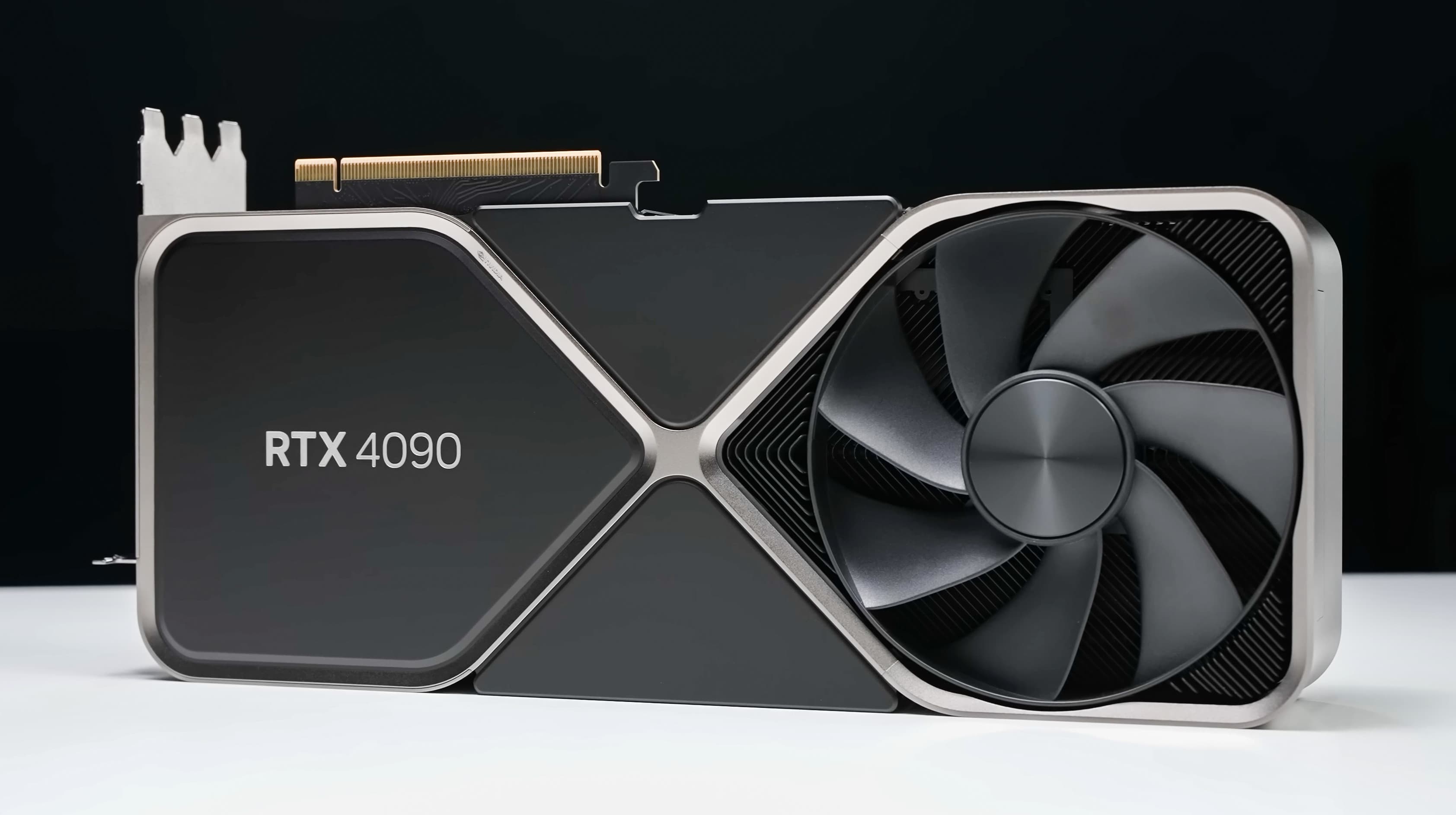
What counts as a bottleneck (and what doesn’t)
A bottleneck happens when one component finishes its work faster than another and ends up idle, waiting. In a PC game, your CPU prepares each frame (physics, AI, draw calls) and your GPU renders it (shading, texturing, post-processing). If they take roughly the same time per frame, the build is balanced. If one is dramatically faster, it waits — and the slower one defines your frame rate.
The word “bottleneck” gets thrown at every PC build that isn’t maxing every part. That’s a useless definition. Every build is bottlenecked by something— that’s how rate-limiting steps work. The question that matters is: is the bottleneck severe enough to be worth spending money on? A 5% imbalance isn’t. A 25% imbalance probably is. The five methods below give you the data to tell the difference.
For the conceptual deep dive on what CPU- vs GPU-bound actually means and when each one happens, see our pillar guide: CPU vs GPU bottleneck explained.
Method 1 — Task Manager (the 30-second check)
Windows has the answer built in. You don’t need to install anything to get a usable bottleneck reading.
- Launch any demanding game (Cyberpunk, BG3, AAA preferred).
- Press Ctrl + Shift + Esc to open Task Manager.
- Click Performance in the left sidebar.
- Alt-tab back to the game and play for 30 seconds, then alt-tab back to Task Manager.
- Compare CPU% and GPU% in the graphs.
What you’re looking for:
- CPU-BOUNDCPU 95–100%, GPU under 90%. Frame rate is gated by how fast the CPU can prepare frames.
- GPU-BOUNDGPU 95–100%, CPU under 70%. This is the “healthy” state for most modern gaming builds at 1440p and 4K.
- BALANCEDCPU 60–85%, GPU 90–100%. Both parts working, neither idle.
Method 2 — MSI Afterburner + RivaTuner (the gold standard)
MSI Afterburner is free and runs on AMD GPUs as well as NVIDIA. It ships with RivaTuner Statistics Server (RTSS), which draws an overlay directly on top of the game. You see usage data while you actually play, not after the fact.
- Download MSI Afterburner from MSI’s official page and install. RivaTuner installs automatically.
- Open Afterburner → Settings (gear icon) → Monitoring.
- Check “Show in On-Screen Display” for: GPU usage, GPU temperature, CPU usage, CPU usage (per core), RAM, VRAM, and Framerate.
- Apply, launch your game, the overlay appears.
The benefit over Task Manager: per-core CPU usage in real-time at the game’s actual load, plus frame time, which catches stutters that average FPS hides. If you only install one diagnostic tool, install this one.
Method 3 — In-game performance overlays (zero-install option)
Both NVIDIA and AMD ship overlays as part of their driver suite. They’re less detailed than Afterburner but require nothing extra to install.
NVIDIA — GeForce Experience
Press Alt + R while in a game to open the in-game overlay, then click Performance → Advanced. You get CPU usage, GPU usage, temps, and FPS pinned to a corner of the screen.
AMD — Radeon Software (Adrenalin)
Press Ctrl + Shift + Oto toggle the Performance Metrics overlay. Customize what’s shown via Radeon Software → Performance → Metrics.
Method 4 — HWiNFO64 + 3DMark (the detective method)
When Task Manager and Afterburner give you ambiguous readings — say, CPU at 75% and GPU at 88%, both genuinely busy — you need a controlled test. Synthetic benchmarks remove the variability of game engines and tell you which part is actually the rate limit at full load.
Install HWiNFO64 (free, detailed per-sensor monitoring) and run 3DMark’s free Time Spy or Steel Nomad benchmark. The result page splits your score into “Graphics” and “CPU” sub-scores. Compare both against 3DMark’s reference scores for your exact CPU + GPU. The one that’s underperforming the median is your bottleneck — or, if both underperform, you have a thermal or power-limit issue, not a parts-matching issue.
Method 5 — A bottleneck calculator (no install, no game required)
All four methods above require you to own the parts. If you’re planning an upgrade and want to know whether a new GPU will be held back by your old CPU — or vice versa — you need a calculator that runs the same math without the hardware.
Most bottleneck calculators online return one suspicious-looking percentage and nothing else. Look for one that reports:
- A verdict (CPU-bound / GPU-bound / balanced), not a single number
- The answer at multiple resolutions (1080p / 1440p / 4K) — it changes
- Predicted FPS in specific games, with confidence indicators
- A recommended PSU wattage
- The specific upgrade that would help most
- Open methodology so you can audit the math
// RUN THE NUMBERS
Have a specific build in mind? Run it through the free PC bottleneck calculator and see the verdict at 1080p, 1440p, and 4K — plus predicted FPS in 10 popular games.
Open the bottleneck calculator →How to interpret the numbers
Once you have data from any of the methods above, the interpretation is the same. Here’s the cheat sheet:
When NOT to worry about a bottleneck
Three situations where a measured imbalance isn’t worth spending money on:
- Your FPS is already above your monitor’s refresh rate. If you’re hitting 200 FPS on a 144 Hz display, you’re throwing frames away. Lower the bottleneck’s strain by capping your FPS to your refresh rate (NVIDIA Control Panel or RTSS) — every part runs cooler and you lose nothing.
- You’re GPU-bound at 4K with high settings. This is what you bought the GPU for. A faster GPU is the only fix and the upgrade should be planned around generations, not chased in a single sitting.
- The imbalance is under 15%.Heuristic bottleneck measurements are noisy. Below 15% deviation, you’re inside the noise floor of any measurement method short of a controlled lab. The cost of upgrading vastly exceeds the FPS gain.
FAQ
What's the easiest way to check a PC bottleneck for a beginner?
Task Manager. Press Ctrl+Shift+Esc, click Performance, alt-tab into a game for 30 seconds, alt-tab back. If GPU is 95–100% and CPU is under 70%, you're GPU-bound. If CPU is at 100% and GPU is under 90%, you're CPU-bound. No installation needed.
Does 100% GPU usage mean a bottleneck?
No, the opposite. 100% GPU usage means your GPU is fully utilized — that's the goal of a balanced gaming build. A bottleneck is when one part is idle waiting for the other. If your GPU is at 100% and your CPU is at 60–80%, the build is GPU-bound, which is healthy for high-resolution gaming.
Why does my CPU usage say 25% but one core is at 100%?
Older or single-threaded game engines often pin one core while leaving the others idle. The overall CPU percentage averages across all cores and hides this. Switch Task Manager's CPU graph to 'Logical processors' to see per-core usage. A single pinned core is still a CPU bottleneck — you'd benefit from a chip with higher single-thread performance.
Are online bottleneck calculators accurate?
Most aren't — they apply opaque rules and return percentages that don't correlate with measured behavior. Look for calculators that anchor their math on real benchmarks (PassMark, Geekbench, TechPowerUp), report a verdict instead of a single percentage, and show how the answer changes with resolution. Our calculator at pcbottleneck.com publishes its full methodology.
Should I cap my FPS to avoid bottlenecks?
Capping your FPS to your monitor's refresh rate doesn't avoid a bottleneck — it caps the workload so the bottleneck stops mattering. It reduces heat, power draw, and coil whine, and removes frame-pacing inconsistency. Use NVIDIA Control Panel's Max Frame Rate or RivaTuner Statistics Server to set the cap globally.
// RUN THE NUMBERS
Have a specific build in mind? Run it through the free PC bottleneck calculator and see the verdict at 1080p, 1440p, and 4K — plus predicted FPS in 10 popular games.
Open the PC bottleneck calculator →